
Simulating Your Robot Before Building It: An Introduction to Gazebo
Simulation lets you test your robot software without risking expensive hardware. Learn how to set up Gazebo with ROS2 and simulate a simple differential drive robot.
One of the best practices in robotics is to simulate before you build. Simulation lets you test algorithms, find bugs, and iterate quickly — without breaking hardware or spending money on components. The standard simulation tool for ROS2 is Gazebo.
Why Simulate?
- Safety: test navigation algorithms without risking a collision
- Speed: simulation runs faster than real time (or slower, for debugging)
- Repeatability: run the exact same scenario hundreds of times
- Cost: no hardware needed for early development
- Sensors: simulate cameras, LiDAR, IMUs with realistic noise models
Gazebo is the standard choice for ROS2, but it isn’t the only simulator out there. Here’s how the popular options compare so you know why we’re reaching for Gazebo:
| Simulator | Best for | ROS2 integration | Learning curve |
|---|---|---|---|
| Gazebo | General robotics, ROS2 projects | First-class (built for ROS) | Moderate |
| PyBullet | Quick physics prototyping, RL | Via custom code | Gentle |
| MuJoCo | Fast, accurate contact dynamics, RL | Via custom code | Moderate |
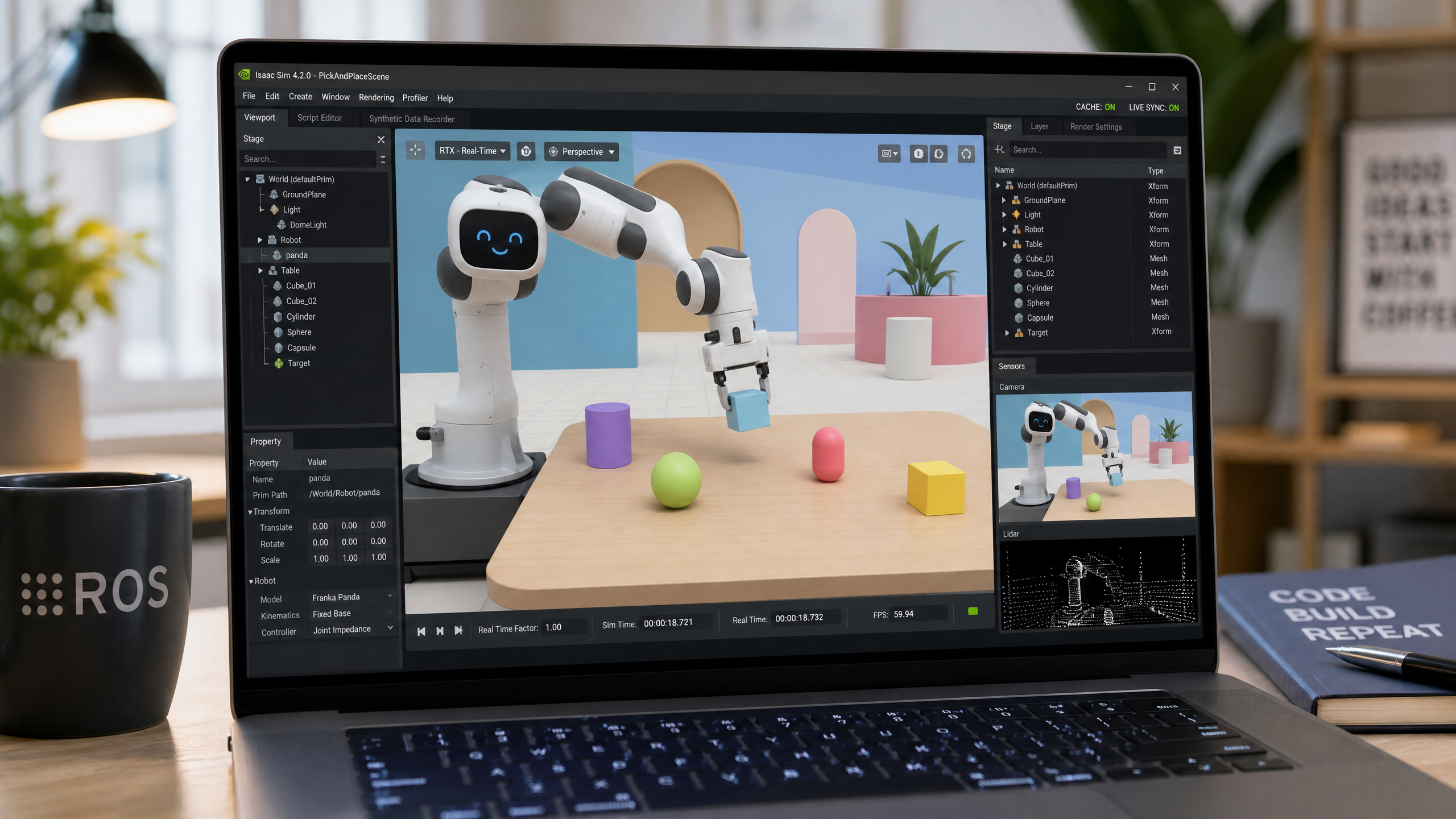
| Isaac Sim | Photorealistic scenes, GPU-scale RL | Good (needs NVIDIA GPU) | Steep |
Installing Gazebo Fortress with ROS2 Humble
sudo apt install ros-humble-ros-gz
sudo apt install ros-humble-gz-ros2-control
A Simple Robot URDF
URDF (Unified Robot Description Format) is an XML format that describes your robot’s physical structure. A differential drive robot needs two driven wheels (left and right) plus a caster to balance on — driving the two wheels at different speeds is what makes it turn. Here’s a minimal but complete robot.urdf:
<?xml version="1.0"?>
<robot name="my_robot">
  <!-- Chassis -->
  <link name="base_link">
    <visual>
      <geometry><box size="0.3 0.2 0.1"/></geometry>
      <material name="blue"><color rgba="0.2 0.4 0.8 1.0"/></material>
    </visual>
    <collision>
      <geometry><box size="0.3 0.2 0.1"/></geometry>
    </collision>
    <inertial>
      <mass value="1.0"/>
      <inertia ixx="0.0042" iyy="0.0083" izz="0.0108" ixy="0" ixz="0" iyz="0"/>
    </inertial>
  </link>

  <!-- A reusable wheel macro would be cleaner, but we keep it explicit here -->
  <link name="left_wheel">
    <visual><geometry><cylinder radius="0.05" length="0.04"/></geometry></visual>
    <collision><geometry><cylinder radius="0.05" length="0.04"/></geometry></collision>
    <inertial>
      <mass value="0.1"/>
      <inertia ixx="0.00007" iyy="0.00007" izz="0.000125" ixy="0" ixz="0" iyz="0"/>
    </inertial>
  </link>
  <joint name="left_wheel_joint" type="continuous">
    <parent link="base_link"/>
    <child link="left_wheel"/>
    <origin xyz="0 0.12 -0.05" rpy="-1.5708 0 0"/>
    <axis xyz="0 0 1"/>
  </joint>

  <link name="right_wheel">
    <visual><geometry><cylinder radius="0.05" length="0.04"/></geometry></visual>
    <collision><geometry><cylinder radius="0.05" length="0.04"/></geometry></collision>
    <inertial>
      <mass value="0.1"/>
      <inertia ixx="0.00007" iyy="0.00007" izz="0.000125" ixy="0" ixz="0" iyz="0"/>
    </inertial>
  </link>
  <joint name="right_wheel_joint" type="continuous">
    <parent link="base_link"/>
    <child link="right_wheel"/>
    <origin xyz="0 -0.12 -0.05" rpy="-1.5708 0 0"/>
    <axis xyz="0 0 1"/>
  </joint>

  <!-- Caster: a low-friction sphere at the front so the robot doesn't tip -->
  <link name="caster">
    <visual><geometry><sphere radius="0.025"/></geometry></visual>
    <collision>
      <geometry><sphere radius="0.025"/></geometry>
      <surface><friction><ode><mu>0.0</mu><mu2>0.0</mu2></ode></friction></surface>
    </collision>
    <inertial>
      <mass value="0.05"/>
      <inertia ixx="0.00001" iyy="0.00001" izz="0.00001" ixy="0" ixz="0" iyz="0"/>
    </inertial>
  </link>
  <joint name="caster_joint" type="fixed">
    <parent link="base_link"/>
    <child link="caster"/>
    <origin xyz="0.12 0 -0.075" rpy="0 0 0"/>
  </joint>

  <!-- This plugin is what actually makes the robot drivable: it listens on
       /cmd_vel and spins the two wheels accordingly, publishing odometry. -->
  <gazebo>
    <plugin filename="libignition-gazebo-diff-drive-system.so"
            name="ignition::gazebo::systems::DiffDrive">
      <left_joint>left_wheel_joint</left_joint>
      <right_joint>right_wheel_joint</right_joint>
      <wheel_separation>0.24</wheel_separation>
      <wheel_radius>0.05</wheel_radius>
      <topic>cmd_vel</topic>
      <odom_topic>odom</odom_topic>
    </plugin>
  </gazebo>
</robot>
Launching in Gazebo
This launch file starts Gazebo, publishes the robot’s TF tree, spawns the robot into the simulator, and bridges /cmd_vel so ROS2 can drive it:
# launch/sim.launch.py
import os
from launch import LaunchDescription
from launch_ros.actions import Node
from launch.actions import ExecuteProcess

def generate_launch_description():
    urdf_path = os.path.join(os.path.dirname(__file__), '..', 'robot.urdf')
    with open(urdf_path) as f:
        robot_desc = f.read()

    return LaunchDescription([
        # Start Gazebo Fortress with an empty world
        ExecuteProcess(
            cmd=['ign', 'gazebo', '-r', 'empty.sdf'],
            output='screen'
        ),
        # Publish robot_description (and the TF tree) from the URDF
        Node(
            package='robot_state_publisher',
            executable='robot_state_publisher',
            parameters=[{'robot_description': robot_desc}]
        ),
        # Spawn the robot into Gazebo from the /robot_description topic
        Node(
            package='ros_gz_sim',
            executable='create',
            arguments=['-name', 'my_robot', '-topic', 'robot_description'],
            output='screen'
        ),
        # Bridge /cmd_vel: ROS2 Twist <-> Gazebo Twist
        Node(
            package='ros_gz_bridge',
            executable='parameter_bridge',
            arguments=['/cmd_vel@geometry_msgs/msg/Twist@ignition.msgs.Twist'],
            output='screen'
        ),
    ])
Once it’s running, drive the robot from another terminal:
ros2 run teleop_twist_keyboard teleop_twist_keyboardA note on Gazebo versions. This tutorial targets Gazebo Fortress, which pairs with ROS2 Humble. Its command is
ign gazeboand its plugins live in theignition::gazebonamespace (e.g.libignition-gazebo-diff-drive-system.so). Newer Gazebo (Garden, Harmonic) renamed these togz simandgz::sim::systems::DiffDrive— if you’re on one of those, swap the command and plugin names accordingly.
Simulation is a deep topic — we’ll return to it when we cover SLAM, navigation, and reinforcement learning in simulation.
Next week we step back for a Robotics Dispatch on robots moving onto the factory floor, before we get hands-on again with servo motors.